How to See Who Is Connected to Your Wi-Fi
Your router admin panel shows a complete list of all connected devices. Checking it regularly helps you spot unauthorised connections and identify devices you no longer use.
How to View Connected Devices
- 1Log in to your router admin panel
Go to http://192.168.1.1 in a browser. Enter your admin username and password.
- 2Find the Connected Devices section
Look for Attached Devices (Netgear), Wireless Clients or Client List (TP-Link, Asus), DHCP Client List, or Network Map. Most modern routers show device name, IP address, and MAC address for each connected device.
- 3Identify each device
Cross-reference device names or MAC addresses with your own devices. The MAC address manufacturer prefix (first 6 characters) can help identify unknown devices - Apple MACs start with patterns like A4:CF:99, Samsung with 8C:AA:B5, etc. Searching the first 6 characters on macvendors.com identifies the manufacturer.
- 4Remove unauthorised devices
If you find a device you do not recognise, change your Wi-Fi password immediately. All connected devices will be disconnected and will need to reconnect with the new password. Use MAC filtering to block specific devices if the problem recurs.
Where to Find Device Lists by Brand
| Brand | Path to Connected Devices |
|---|---|
Netgear | Home > Attached Devices or Advanced > Device Manager |
TP-Link | Advanced > Network > DHCP Server > DHCP Clients List |
Asus | Network Map (main page) or Client List |
Linksys | Connected Devices or DHCP Client Table |
D-Link | Home > Wireless Clients or Advanced > DHCP |
Xfinity / mesh systems | In the app: device list on the main screen (Xfinity, Eero, Deco, Nest all work this way) |
That List Will Look Scarier Than It Is
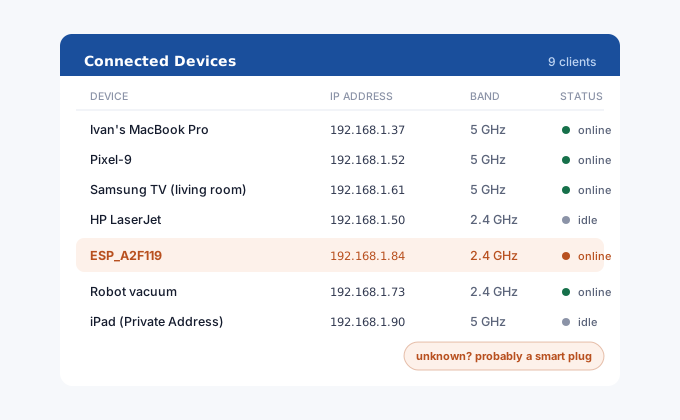
Open the client list in an average home and you'll count more devices than people by a factor of four or five. Before assuming the neighbour is stealing Wi-Fi, walk through the boring suspects: every phone, tablet and laptop obviously, but also the TV, the streaming stick, the printer, the doorbell, the robot vacuum, smart plugs, the car parked in the garage, a Kindle someone hasn't touched since spring. They all hold DHCP leases and many report useless names like "ESP_8266" or just a MAC address.
Two things make identification harder than it used to be. Phones now randomize their MAC address per network by default (iOS calls it Private Wi-Fi Address), so the manufacturer-prefix trick returns nothing useful for them, a random MAC won't match Apple's or Samsung's real prefixes. And a single device can appear twice, once per band or once via Wi-Fi and once via cable. The practical identification method: turn a suspect device's Wi-Fi off, watch which list entry goes stale, repeat. Tedious, works every time.
Renaming devices in the router panel as you identify them is fifteen minutes of tedium that pays off permanently, next time the list is legible at a glance and a genuine stranger stands out immediately.
If It Really Is an Intruder
Change the Wi-Fi password, and that alone ends it, the intruding device drops off and can't return without the new one. Take the opportunity to check three things while you're in the panel: that the network uses WPA2 or WPA3 (not WEP or open), that WPS is disabled since its PIN mode is bruteforceable on older routers and is the most likely way someone got in without your password, and that the router admin password isn't still the factory default. A guest network for visitors keeps future password-sharing away from your main network entirely.
Skip MAC-address blocking as a security tool. A blocked intruder just changes their MAC, it's a one-click spoof, and you'll be maintaining a blocklist forever. The password change is the fix; blocking is theatre.