What Is My Router IP Address?
Your router's local gateway IP is what you type into a browser to reach the admin panel. The tool below detects it automatically using WebRTC - no apps, no sign-up.
Detected addresses
Try these common gateway addresses directly
How the Detection Works (and When It Guesses Wrong)
The tool above asks your browser for its local network address through WebRTC, then assumes the router sits at the .1 of the same range. So if your laptop got 192.168.1.37, it shows 192.168.1.1 as the gateway. That assumption is right for the vast majority of home routers, but not all of them.
BT Hubs sit at 192.168.1.254. MikroTik uses 192.168.88.1. Some Belkin and Billion units answer at the .254 too. If the detected address doesn't load a login page, run one of the manual checks below instead, those read the real gateway straight from your operating system and are never wrong.
One more thing worth knowing: browsers have been tightening WebRTC over the years because it can leak network details. Firefox with strict privacy settings, Brave with Shields up, and Safari in some configurations will return an obfuscated address like a1b2c3.local instead of a real IP. The tool falls back to probing common gateways when that happens, but the manual route is more reliable.
Find Your Router IP Manually
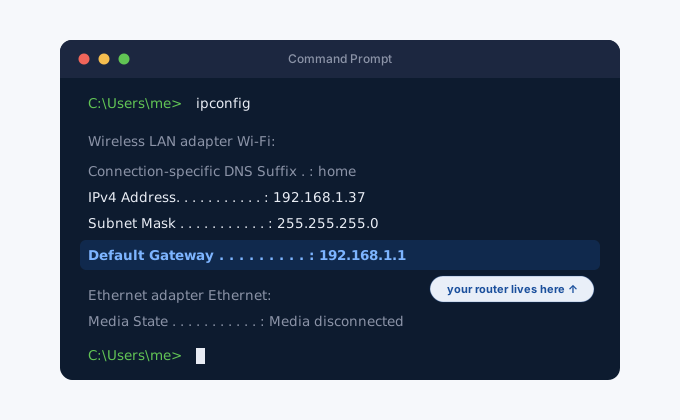
Every operating system knows its default gateway, because it literally cannot reach the internet without it. You just have to ask.
Windows 10 / 11
- 1Open Command Prompt
Press Win + R, type
cmd, hit Enter. No admin rights needed for this. - 2Run ipconfig
Type
ipconfigand press Enter. You'll get a wall of text, that's normal. - 3Read the Default Gateway line
Find the adapter you're actually using (Wireless LAN adapter Wi-Fi on most laptops, Ethernet adapter on desktops) and look at its Default Gateway line. Ignore adapters that say "Media disconnected". If you prefer clicking: Settings → Network & internet → Wi-Fi → your network properties also shows the gateway near the bottom.
macOS
- 1The settings way
System Settings → Wi-Fi → Details button next to your network → TCP/IP. The Router field is your gateway. On older macOS (Monterey and earlier) it's System Preferences → Network → Advanced.
- 2The terminal way
Open Terminal and run
netstat -rn | grep default. The first IPv4 address on the "default" line is the router.route -n get defaultworks too and is a bit easier to read.
Linux
- 1ip route
Run
ip route show defaultin any terminal. The address after "via" is your router. On systems without iproute2 (rare these days),route -nshows the same thing in the Gateway column.
iPhone / iPad
- 1Settings → Wi-Fi
Tap the ⓘ next to the network you're connected to.
- 2Scroll to the Router field
It's under the IPV4 ADDRESS block. That's your gateway. You can long-press it to copy.
Android
- 1Open your Wi-Fi network details
Settings → Network & internet → Internet → tap the gear next to your network. On Samsung it's Settings → Connections → Wi-Fi → gear icon.
- 2Look for Gateway
Usually under Advanced or "View more". Android vendors move this around constantly, so on some phones you'll find it only after tapping the IP settings entry. If your phone hides it entirely, the router side of things is easier: check the sticker on the router itself, most brands print the admin address there.
Common Router IPs by Brand
| Brand | Default Gateway IP | Login Guide |
|---|---|---|
Netgear | 192.168.1.1 or routerlogin.net | Guide |
TP-Link | 192.168.1.1 or tplinkwifi.net | Guide |
Linksys | 192.168.1.1 or myrouter.local | Guide |
D-Link | 192.168.0.1 or dlinkrouter.local | Guide |
Asus | 192.168.1.1 or router.asus.com | Guide |
Comcast / Xfinity (Arris) | 10.0.0.1 | Guide |
BT Smart Hub | 192.168.1.254 or bthub.home | Guide |
Apple AirPort | 10.0.1.1 | Guide |
MikroTik | 192.168.88.1 | - |
AVM Fritz!Box | 192.168.178.1 or fritz.box | - |
Huawei | 192.168.8.1 or 192.168.3.1 | - |
Google Nest WiFi | 192.168.86.1 (app only) | Guide |
Frequently Asked Questions
Why did no router IP get detected?
Your browser may have WebRTC disabled (common with Firefox's privacy settings or Brave's Shields). Try the manual steps above - ipconfig on Windows or ip route on Linux and Mac always works regardless of browser settings.
My router IP detected doesn't match what ipconfig shows - which is correct?
The ipconfig result is always authoritative. WebRTC detection estimates the gateway by assuming it ends in .1, but some routers use .254 or other addresses. If there's a discrepancy, use the ipconfig/ip route result.
I found my router IP - what do I do with it?
Type it into your browser address bar with http:// at the start (example: http://192.168.1.1). You'll see the router admin login page. Enter the username and password from the sticker on the back of your router. From there you can change your Wi-Fi password, set up port forwarding, update firmware, and more.
Is it safe to share my router's local IP?
Sharing the local IP is low risk on its own - 192.168.1.1 is used by millions of routers worldwide and doesn't identify your specific device. However, sharing your router admin password alongside it is dangerous. Keep credentials private.