Access your router admin panel now.
What Is 192.168.10.1?
192.168.10.1 is a private IP for router gateways, commonly used by brands like Trendnet and some Motorola models in the US. It facilitates access to admin settings for Wi-Fi customization, security protocols, and network oversight. As a local address, it's shielded from public internet access.
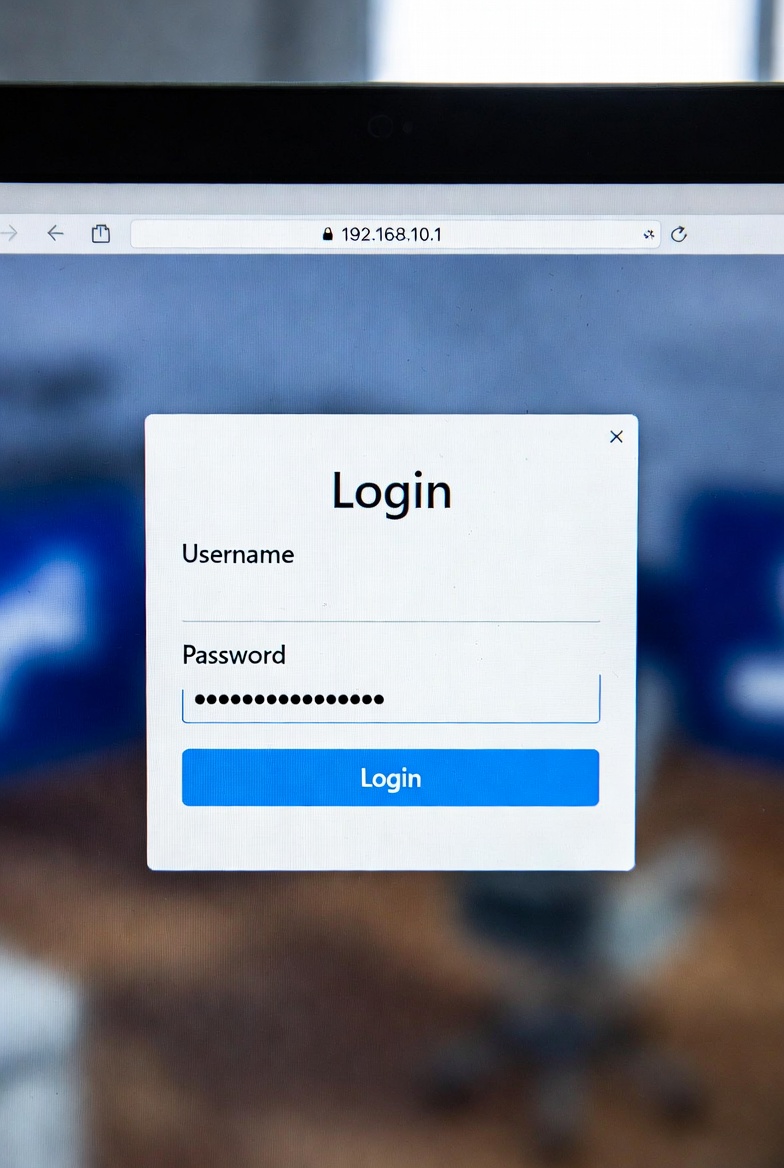
How to Log In to 192.168.10.1
Follow these detailed steps to securely access your router's admin panel at 192.168.10.1:
- Ensure you are connected to your home network either via Wi-Fi or an Ethernet cable, as the 192.168.10.1 address is only accessible locally.
- Open your preferred web browser, such as Chrome or Firefox, and type http://192.168.10.1 into the address bar, then press Enter to load the login page.
- Enter the default username and password for your router brand (refer to the defaults listed below), and click the login button to proceed.
- Once logged in, immediately update the default password to a strong, unique one to protect your network from unauthorized access.
Security Tips
- Use WPA3 encryption for the highest level of Wi-Fi security available on modern routers.
- Disable WPS to prevent potential vulnerabilities from PIN-based connections.
- Enable a guest network to isolate visitors from your main devices and data.
- Regularly monitor connected devices to detect and remove any unauthorized ones.
- Change the default SSID to something unique and non-identifiable.
- Implement MAC address filtering for added control over device access.
- Avoid enabling remote access unless absolutely necessary, as it can expose your network.
- Enable the built-in firewall to block unwanted incoming traffic.
- Perform monthly firmware updates to patch security flaws and improve performance.
- Create strong, complex passwords using a mix of letters, numbers, and symbols.
Default Credentials
Important Warning: Default credentials are a security risk as they are widely known. Change them immediately after your first login to prevent unauthorized access to your network. Below are common defaults for brands using 192.168.10.1 in the US; always check your router's sticker or manual for exact details.
| Brand | Username | Password |
|---|---|---|
| Trendnet | admin | admin |
| Motorola | admin | motorola |
| LevelOne | admin | password |
| NetComm | admin | admin |
Note: If you've forgotten your customized credentials, perform a factory reset by pressing the reset button on your router for 10-15 seconds, but be aware this will erase all custom settings. Reset if forgotten.
Troubleshooting When 192.168.10.1 Doesn’t Work
If you're unable to access 192.168.10.1, try these common fixes to resolve connectivity issues:
- Double-check your connection to ensure you're on the correct network, as 192.168.10.1 is only reachable locally.
- Verify your router's IP address using commands like ipconfig on Windows or ifconfig on macOS/Linux to confirm it's indeed 192.168.10.1.
- Clear your browser cache and cookies, as outdated data can prevent the login page from loading properly.
- Disable any VPN or proxy services temporarily, since they might interfere with local IP access.
- Power cycle your router by unplugging it for 30 seconds and plugging it back in to reset temporary glitches.
- As a last resort, perform a factory reset, but note that this will revert all settings to defaults and require re-setup.
If problems persist, contact your ISP or router manufacturer's support for model-specific assistance.
Frequently Asked Questions
Is 192.168.10.1 universal?
No, it varies by brand (e.g., 192.168.1.1 for Linksys). Check your model or use ipconfig to confirm.
Remote access to 192.168.10.1?
No, it's local only. Use a VPN for secure remote management if supported by your router.
Forgot password?
Perform a factory reset, then log in with defaults. Back up settings beforehand to avoid data loss.
Safe to change settings?
Yes, but proceed with caution and follow manufacturer guides to avoid disrupting your network.
HTTPS redirect?
It's for enhanced security; accept the certificate if it's from your router to proceed safely.
Improve performance?
Update firmware, select optimal Wi-Fi channels, and monitor devices to ensure smooth operation.
Disclaimer
Educational use only. No illegal access. Source: manufacturer info.