Turn your router into a vigilant guardian by activating its firewall, creating a secure perimeter that keeps threats at bay while allowing seamless connectivity.
Understanding Router Firewalls
Imagine your home network as a bustling city; the firewall serves as the gatekeeper, scrutinizing every visitor to ensure only trusted ones enter. Built into most modern routers, it examines data packets traveling between the internet and your devices, blocking suspicious activity based on predefined rules.
This essential feature protects against common threats like hacking attempts, malware infections, and unauthorized data leaks. Interestingly, without a firewall, your network is like an open door, inviting risks that could compromise personal information or device performance.
Router firewalls complement other security measures, such as antivirus software on individual devices, forming a multi-layered defense system that adapts to evolving cyber dangers.
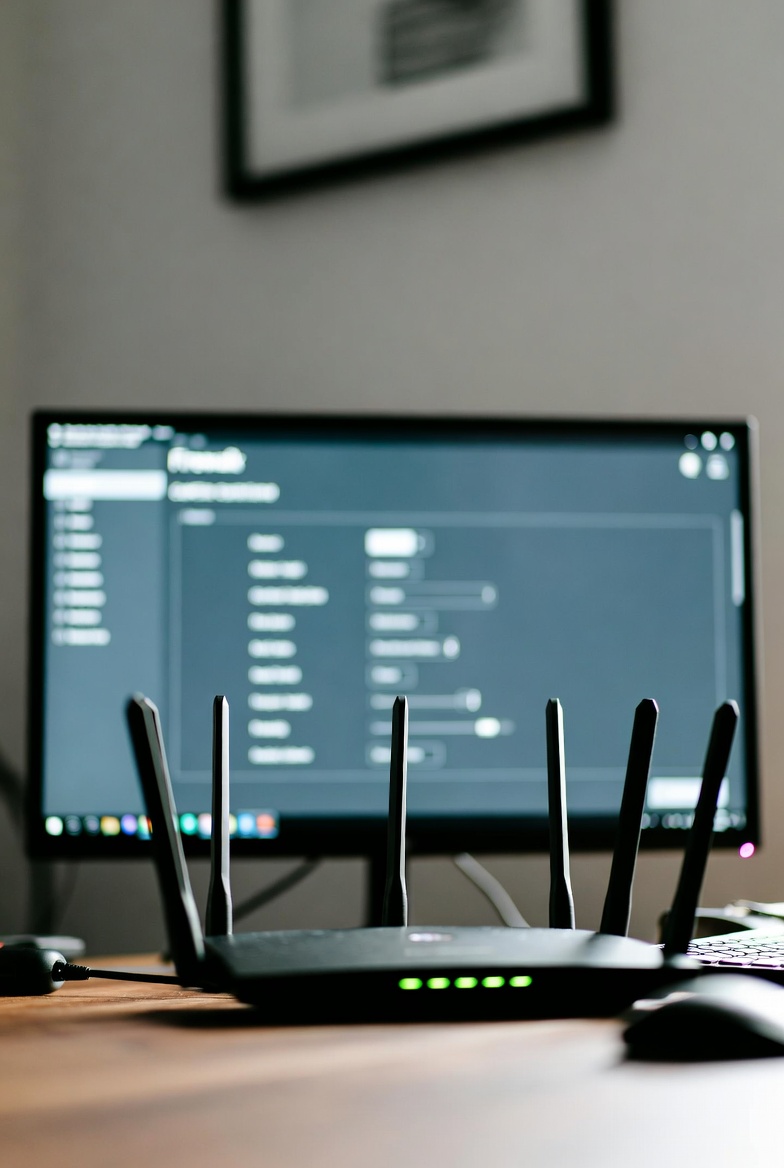
Types of Firewalls in Home Routers
Home routers typically incorporate several firewall types to balance security and usability. Here are the primary ones you might encounter:
- Packet Filtering Firewalls: These basic guardians check packet headers against rules, allowing or denying based on source, destination, and port information. They are efficient but lack context awareness.
- Stateful Inspection (SPI) Firewalls: More advanced, they track connection states, ensuring packets belong to established sessions. This prevents unsolicited inbound traffic while permitting responses to your requests.
- Proxy Firewalls: Acting as intermediaries, they hide your network's identity and filter content at the application level, useful for controlling web access.
- Next-Generation Firewalls (NGFW): Found in premium routers, these integrate intrusion prevention, deep packet inspection, and application awareness for comprehensive threat detection.
- Network Address Translation (NAT) Firewalls: While not a true firewall, NAT masks internal IP addresses, adding a layer of obscurity against external probes.
Brands like Netgear often emphasize SPI with DoS protection, TP-Link focuses on user-friendly SPI and access controls, while Linksys integrates NGFW-like features in smart WiFi models for enhanced monitoring.
Key Firewall Features and Recommendations
Selecting the right firewall settings depends on your needs. For basic home use, enable SPI and DoS protection to thwart common attacks. Advanced users might appreciate URL filtering to block harmful sites or logging to review activity.
Recommendations from experts include combining firewalls with strong passwords and WPA3 encryption. Netgear offers robust keyword blocking, TP-Link provides affordable DoS defenses, and Linksys excels in parental controls integrated with firewalls.
Consider your environment: In smart homes with many IoT devices, opt for NGFW capabilities to inspect app-specific traffic and prevent vulnerabilities.
Detailed Setup Process
Enabling your router's firewall is straightforward but varies slightly by brand. Start by connecting to your network and preparing for configuration. Follow these general steps, adapting for your model.
- Access the Admin Panel: Open a browser and enter the router's IP, often 192.168.1.1 or similar. Log in with admin credentials; change defaults immediately for security.
- Locate Firewall Settings: Navigate to Security, Advanced, or Firewall tab. Look for options like SPI Firewall or Enable Protection.
- Activate Core Features: Toggle on the main firewall, DoS protection, and any NAT settings. Set rules to block ping responses from WAN for stealth.
- Configure Custom Rules: Add inbound/outbound rules for specific ports or IPs. For example, block unused ports like 23 (Telnet) to reduce attack surfaces.
- Integrate Additional Security: Enable MAC filtering or set up a guest network to isolate visitors.
- Save and Verify: Apply changes and reboot if needed. Use online tools like ShieldsUP! to test your firewall's effectiveness.
Brand-Specific Tips
Tailor your approach with these insights:
- Netgear (e.g., Nighthawk series): Use routerlogin.net; enable SPI under Advanced > Setup > WAN Setup. Add custom rules for traffic metering.
- TP-Link (e.g., Archer models): Via tplinkwifi.net, go to Advanced > Security > Firewall; activate SPI and set access controls for devices.
- Linksys (e.g., Velop series): Access via myrouter.local; in Security, enable IPv4/IPv6 firewalls and use apps for real-time monitoring.
Optimization and Best Practices
To maximize your firewall's potential, adopt these habits drawn from industry standards. Regularly update firmware through the manufacturer's site to patch vulnerabilities and gain new features.
Disable remote management to prevent external access, and use complex admin passwords. Segment your network by placing sensitive devices on separate VLANs if supported.
Monitor logs periodically for unusual patterns, and combine with endpoint protection for holistic security. A smart tip: Set up alerts for high-risk events like repeated failed logins.
More practices to consider:
- Block unnecessary services like UPnP unless required for specific apps.
- Test configurations after changes to avoid disrupting legitimate traffic.
- Educate household members on safe browsing to complement technical defenses.
Troubleshooting Common Issues
Encountering problems? Start with basics. If the firewall blocks valid connections, add exceptions for trusted sources or temporarily disable to diagnose.
For no visible options, ensure firmware is current or reset to factory defaults. Performance dips? Simplify rules or upgrade hardware for better processing.
- Conflicting Software: Disable device firewalls if they interfere; prioritize router-level protection.
- Connection Failures: Verify port forwarding rules align with firewall allowances.
- Overly Strict Settings: Loosen restrictions gradually while monitoring threats.
Community forums for your brand often provide model-specific solutions.
Advanced Features and Alternatives
Beyond basics, explore intrusion detection systems (IDS) in NGFW routers for proactive alerts. Some models offer VPN integration for encrypted tunnels.
If built-in features fall short, consider alternatives like open-source pfSense on dedicated hardware or cloud-based firewalls for remote management.
Pros of advanced setups: Granular control and scalability; cons: Higher complexity and potential costs. For ultimate security, layer with network segmentation.
Frequently Asked Questions
What is a router firewall and why is it important?
A router firewall acts as a barrier between your internal network and the internet, inspecting traffic to block unauthorized access and potential threats like malware or hackers.
What are the main types of firewalls in home routers?
Common types include packet filtering, stateful inspection (SPI), and next-generation firewalls (NGFW), each offering varying levels of traffic analysis and protection.
How do I enable the firewall on my router?
Access the router's admin panel via its IP address, navigate to the security or firewall section, and toggle the feature on, then save changes.
Does enabling a firewall slow down my internet?
On modern routers, the impact is minimal, but advanced rules or inspections might slightly affect performance in high-traffic scenarios.
Can I use multiple firewalls for better security?
Yes, combining router firewalls with device-level software adds layers of defense, but ensure they don't conflict.
What if my firewall blocks legitimate traffic?
Create exceptions or rules for trusted IPs, ports, or applications, and test configurations carefully.
Are there alternatives to built-in router firewalls?
Third-party solutions like pfSense or dedicated hardware firewalls offer advanced features for users needing more control.
Disclaimer
This guide is for informational purposes. Security outcomes vary by setup; consult manufacturer documentation or professionals for tailored advice.