Your router is the gateway to your digital world; securing its admin access is like locking the front door to prevent intruders from reconfiguring your entire home network.
The Importance of Changing Your Router's Admin Password
In an era where cyber threats lurk around every corner, leaving your router's default admin password unchanged is akin to handing out keys to your home. These defaults, often simple like 'admin' or 'password', are publicly documented and exploited by automated attacks. By updating it, you block unauthorized users from altering settings, stealing bandwidth, or launching more severe breaches.
Consider this: A compromised router can lead to data interception or even ransomware. Regularly refreshing this credential, especially for popular brands in global markets, adds a crucial layer of protection, ensuring only you control your network's configurations and security features.
This practice not only safeguards personal information but also maintains network performance by preventing tampering.
Crafting a Strong Admin Password
A robust password is your network's shield. Aim for complexity without sacrificing memorability. Start with a base phrase, then incorporate variations: mix cases, add numbers, and include symbols.
Key elements include:
- Length: At least 12 characters to resist brute-force attempts.
- Diversity: Upper and lowercase letters, digits, and special characters.
- Uniqueness: Avoid reusing passwords from other accounts.
Tools like password generators can help, but always store them securely in a manager. Remember, a strong password balances security with usability, reducing the need for frequent resets.
Comparing Default Logins Across Brands
Understanding defaults helps highlight risks. Here's how common brands stack up, emphasizing why change is essential.
| Brand | Default Username | Default Password | Common Access URL |
|---|---|---|---|
| Netgear | admin | password | routerlogin.net |
| TP-Link | admin | admin | tplinkwifi.net |
| Linksys | admin | admin or blank | myrouter.local |
These similarities make generic attacks effective; customizing breaks the pattern.
Detailed Setup Process
Begin by connecting to your network. Access the admin panel via the brand's URL or IP like 192.168.1.1. Log in with current details.
- Navigate to the password change section, often under Administration or Management.
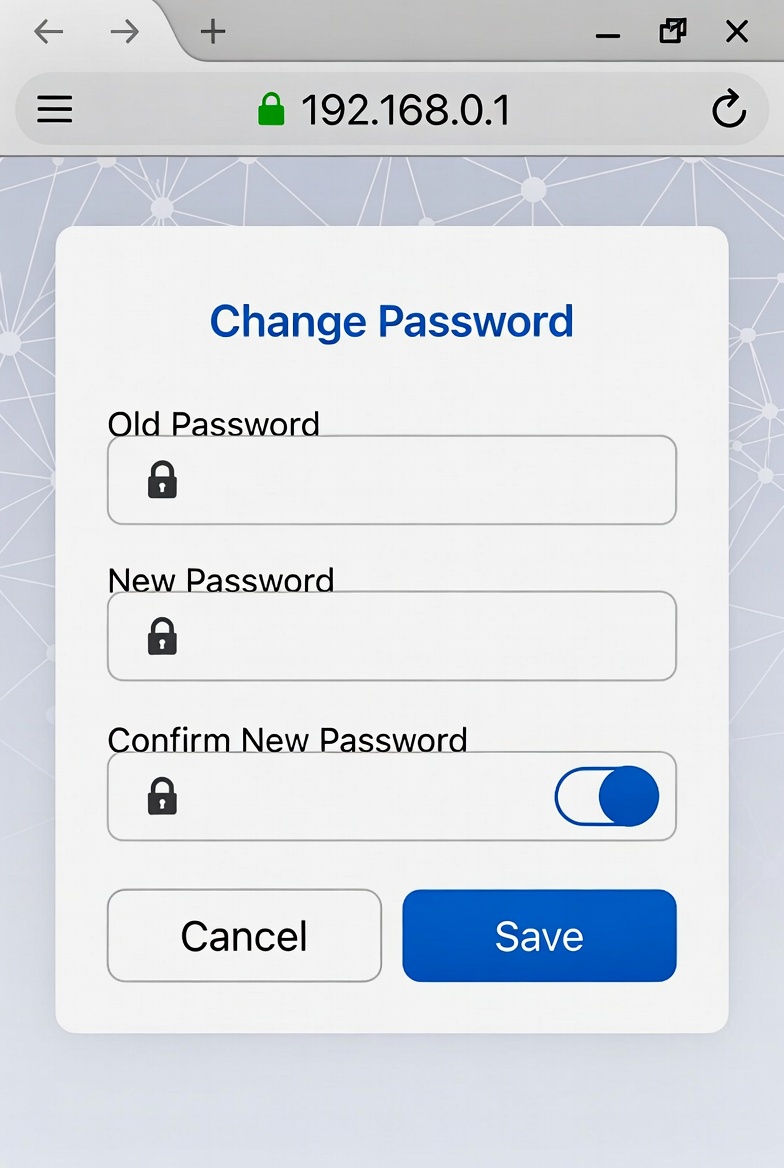
- Enter your old password, then input and confirm the new one.
- Save changes; the router may reboot.
- Test by logging out and back in with the new credentials.
- Update any stored references in apps or devices.
- Monitor for issues and adjust if needed.
Brand-Specific Tips
Adapt for your model:
- Netgear: Visit routerlogin.net; go to Advanced > Administration > Set Password; enable recovery options.
- TP-Link: At tplinkwifi.net, select Management > Access Control > Passwords; update and confirm.
- Linksys: Use linksyssmartwifi.com; under Connectivity > Basic, edit Router Password.
Optimization and Best Practices
Go beyond basics: Enable two-factor authentication if available. Schedule regular updates every few months. Use unique passwords per device.
Integrate with a password manager for secure storage. Keep firmware current to patch vulnerabilities.
More strategies:
- Disable remote management to limit external access.
- Log activities to spot unusual patterns.
- Educate household members on security hygiene.
Troubleshooting Common Issues
If locked out, a factory reset restores defaults but erases custom settings. Hold the reset button for 10-15 seconds.
For failed changes, ensure correct old password and stable connection. Browser cache can interfere; clear it.
- Recovery: Some models email reset links if enabled.
- App glitches: Switch to web interface.
- Post-change: Reconnect devices if needed.
Consult brand support for model quirks.
Alternatives to Manual Changes
Mobile apps offer convenience: Netgear's Nighthawk for remote updates, TP-Link Tether for quick tweaks. Advanced systems integrate with smart home hubs for automated management.
Pros: Accessibility; cons: App vulnerabilities. For enterprises, centralized tools manage multiple routers.
Frequently Asked Questions
Why should I change my router's admin password?
Default passwords are widely known and easily exploited, leaving your network vulnerable to unauthorized changes or attacks.
What makes a strong router password?
A combination of at least 12 characters including uppercase, lowercase, numbers, and symbols, avoiding common words or patterns.
How do I access my router's admin panel?
Enter the router's IP address like 192.168.1.1 in a browser and log in with current credentials.
What if I forget my router's admin password?
Perform a factory reset using the reset button, then use defaults and immediately change to a new one.
Can I change the password via a mobile app?
Yes, many brands offer apps like Netgear Nighthawk or TP-Link Tether for convenient updates.
How often should I update my router password?
Every 3-6 months or after any security incident to maintain protection.
Are there alternatives to manual password changes?
Some advanced routers support automatic updates or integration with password managers for streamlined security.
Disclaimer
This guide is informational. Security practices evolve; verify with your router's manual or manufacturer for latest procedures.