Navigating the world of WiFi bands can transform your online activities, turning frustrating lags into smooth, efficient connections tailored to your space and devices.
Understanding WiFi Bands
WiFi operates on radio frequencies, with 2.4GHz and 5GHz being the most common bands in modern routers. These bands determine how data travels wirelessly from your router to devices like smartphones, laptops, and smart home gadgets. The 2.4GHz band, an older standard, excels in reaching farther distances because its longer wavelengths penetrate obstacles like walls more effectively. In contrast, the 5GHz band uses shorter wavelengths to transmit data quicker, but it struggles with distance and barriers.
Think of 2.4GHz as a reliable truck hauling goods over long, rough roads, while 5GHz is a sports car zipping along smooth highways but limited to shorter trips. This analogy highlights why choosing the right band matters for activities ranging from casual browsing to intensive gaming. Dual-band routers, common in brands like Netgear, TP-Link, and Linksys, support both, allowing flexibility. Interestingly, the choice can impact everything from your video call quality to how well your smart thermostat responds.
With the rise of WiFi 6 and 6E standards, these bands have evolved, offering better efficiency even in crowded networks, but the core differences remain key to optimization.
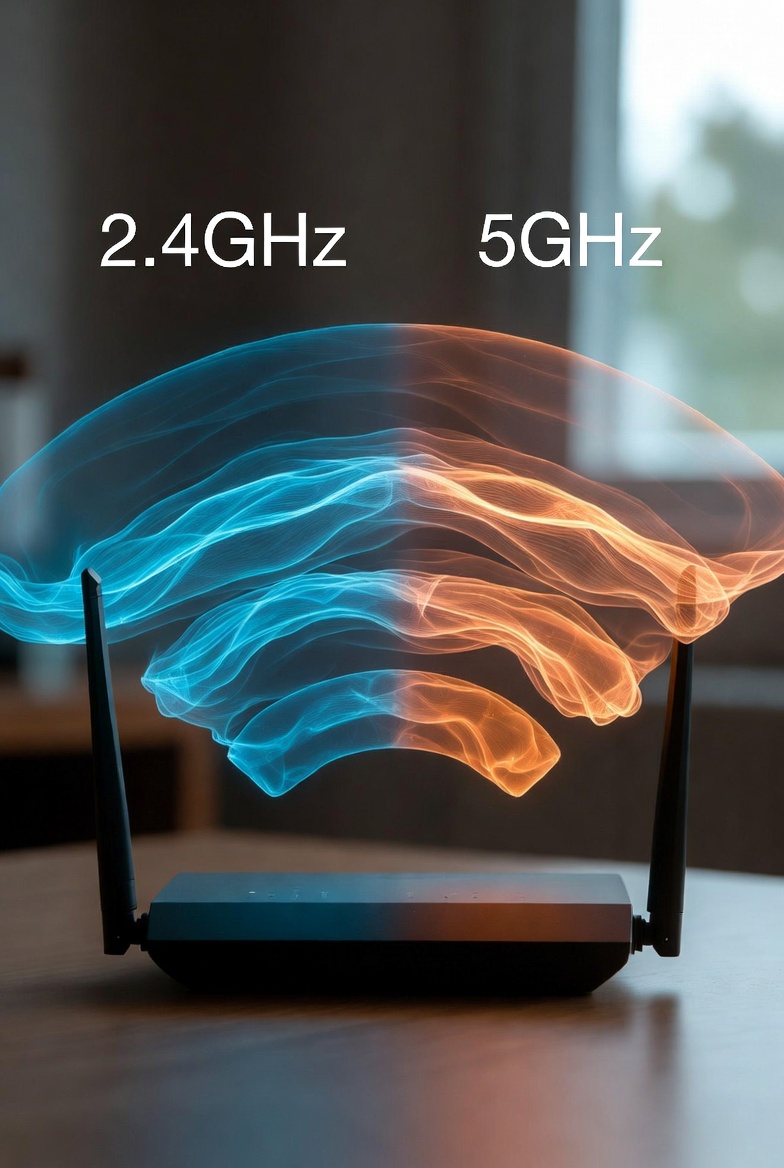
Choosing the Right Band for Your Needs
Selecting between 2.4GHz and 5GHz depends on your environment and usage. For expansive homes or offices with multiple rooms, 2.4GHz provides consistent coverage, making it ideal for devices far from the router. It's also perfect for low-bandwidth tasks like checking emails or controlling IoT devices, where speed isn't critical.
On the other hand, if you're in a smaller space and demand high performance for streaming 4K videos or online gaming, 5GHz shines with its superior throughput. Consider your devices too: Older gadgets might only connect to 2.4GHz, while modern ones benefit from 5GHz's capabilities.
Key factors to evaluate:
- Space size: Larger areas favor 2.4GHz for reach.
- Device count: More devices mean potential congestion, where 5GHz's extra channels help.
- Activity type: Bandwidth-heavy tasks suit 5GHz.
For Netgear users, models like Nighthawk allow easy band selection via apps. TP-Link's Archer series emphasizes user-friendly toggles, and Linksys offers smart steering in Velop systems.
Detailed Comparison
Diving deeper, the bands differ in fundamental ways that affect daily use. Speed on 5GHz can triple that of 2.4GHz, enabling seamless multi-device streaming. Range, however, sees 2.4GHz covering up to three times the distance indoors. Interference plagues 2.4GHz due to shared spectrum with everyday appliances, while 5GHz enjoys a quieter space.
Channels are another battleground: 2.4GHz's limited, overlapping options lead to overlaps in urban areas, whereas 5GHz's abundant non-overlapping channels reduce clashes. Compatibility favors 2.4GHz for legacy tech, but 5GHz is standard in new gear.
| Feature | 2.4GHz | 5GHz |
|---|---|---|
| Speed | Up to 600Mbps, suitable for basic browsing | Over 1Gbps, great for HD streaming and gaming |
| Range | Excellent penetration, up to 150 feet | Limited, around 50 feet with obstacles |
| Interference | High from microwaves, Bluetooth | Low, cleaner spectrum |
| Channels | 11-13, mostly overlapping | 23+ non-overlapping |
| Compatibility | Broad, includes older devices | Newer devices only |
| Best Use | Large spaces, IoT devices | High-speed needs in close proximity |
Brand-Specific Insights
Netgear routers often include MU-MIMO for better multi-device handling on both bands. TP-Link models feature OneMesh for seamless switching, and Linksys uses intelligent tri-band tech to balance loads.
Optimization and Best Practices
To get the most from your bands, position your router centrally and elevated, minimizing barriers. Enable band steering on compatible routers to let devices auto-select the best band. Regularly scan for channel congestion using apps and switch to less crowded ones.
Update firmware for performance boosts and security. Separate SSIDs if you need manual control, naming them clearly like Home-2.4 and Home-5. For WiFi 6 setups, leverage enhanced features like OFDMA for efficient data handling.
Practical tips include:
- Connect stationary high-bandwidth devices to 5GHz.
- Use 2.4GHz for mobile or distant gadgets.
- Monitor usage to avoid overload on one band.
Troubleshooting Common Issues
If 2.4GHz feels sluggish, check for interference from nearby devices and relocate them. For 5GHz drop-offs, ensure proximity and reduce walls between router and device. Reset router settings or reboot to resolve temporary glitches.
Common fixes:
- Select channels 1, 6, or 11 on 2.4GHz to minimize overlap.
- Update device drivers for better band support.
- Test with different devices to isolate problems.
Persistent issues might require firmware upgrades or professional assessment.
Alternatives to 2.4GHz and 5GHz
The emerging 6GHz band in WiFi 6E offers vast bandwidth with minimal interference, ideal for ultra-high-speed needs, though range is similar to 5GHz. Mesh systems extend coverage without band limitations, creating a unified network.
Pros of 6GHz: More channels, faster peaks; cons: Limited device support. Mesh advantages: Seamless roaming; drawbacks: Higher cost.
Frequently Asked Questions
What are the main differences between 2.4GHz and 5GHz WiFi?
2.4GHz offers longer range but slower speeds and more interference, while 5GHz provides faster speeds with shorter range and less interference.
Which band is better for large homes?
2.4GHz is preferable for larger spaces due to its superior penetration through walls and extended coverage.
How does interference affect WiFi performance?
Interference from devices like microwaves can disrupt 2.4GHz signals more than 5GHz, leading to slower or unstable connections.
Are all devices compatible with both bands?
Older devices often only support 2.4GHz, while newer ones can use both; check your device's specifications.
What is band steering and should I use it?
Band steering automatically directs devices to the optimal band; it's useful for seamless performance in dual-band setups.
How can I troubleshoot slow WiFi on one band?
Check for interference, update firmware, select less crowded channels, or reposition your router.
What about the 6GHz band as an alternative?
6GHz, available in WiFi 6E, offers even faster speeds and less congestion but requires compatible devices and has shorter range.
Disclaimer
This guide provides general information. Actual performance depends on your specific router, environment, and devices; refer to manufacturer resources for detailed advice.